
WhatsApp Auto Reply on a Personal Account (iPhone & Android)
Standard WhatsApp has no auto reply. Compare away messages, Meta Business Agent, the Business API and a desktop AI assistant on your existing number, with setup steps.
The standard WhatsApp app has no auto reply. Away messages and greeting messages are tools in the free WhatsApp Business app, not in the regular app you use for a personal account (as of October 2026). To answer customers automatically, these are the options:
| Option | Runs on and cost | What you get |
|---|---|---|
| Away and greeting messages in the WhatsApp Business app | iPhone and Android; free | Fixed text. You move the number to the Business app, and every customer gets the same message |
| Meta Business Agent in the WhatsApp Business app | iPhone and Android; free to start, paid plans announced | Meta's AI answers customers from your chats, website and catalog. It also needs the Business app |
| WhatsApp Business API through a provider | The provider's web inbox; subscription plus Meta's message charges | Chatbots and AI for teams and high volume. The number is used through the provider instead of the regular app |
| An AI assistant on your computer, such as WhatsApp AI Pro | Any phone, linked like WhatsApp Web; $49/month after a 14-day trial | Answers drafted from your own product information on the account you already use, for review or sent automatically. The computer must stay on; not made by WhatsApp |
If an acknowledgment such as "we'll reply in the morning" is enough, away messages are free and official. If customers need an actual answer about products, prices or delivery, compare the AI options below.
Option 1: Away and Greeting Messages in WhatsApp Business (Free)
Moving a personal account to the WhatsApp Business app keeps the same number. Back up your chats first. When you open the Business app, it detects the number from your WhatsApp app and asks for permission to bring over your chat history and media. Contacts saved only inside WhatsApp are not carried over, so save them to your phone's address book before you move. See WhatsApp's guide to moving an account to the WhatsApp Business app.
Set an away message (sent while you are unavailable):
- In the WhatsApp Business app, open the Tools tab and tap Away message.
- Turn on Send away message, then tap the message to edit it.
- Tap Schedule and choose Always send, Custom schedule or Outside of business hours. The last option needs business hours in your business profile.
- Tap Recipients to choose everyone, only people not in your address book, everyone except selected contacts, or only selected contacts.
- Tap Save.
Set a greeting message (sent to new customers): in Tools, tap Greeting message, turn on Send greeting message, edit the text, choose recipients and save. A greeting is sent on a customer's first message, or after 14 days without messages in that chat.
Things to know before relying on them:
- Your phone needs an internet connection for either message to send.
- Both send fixed text. They cannot answer a question about price, stock or delivery.
- Greeting messages switch off automatically while Meta Business Agent (Option 2) is connected. If a greeting stopped sending, check that first.
- Quick replies in the same Tools tab are saved answers you insert yourself with "/". They are shortcuts, not automatic replies.
The official steps are in WhatsApp's help article on away messages.
WhatsApp Auto Reply Message Samples
Copy and adapt these for an away or greeting message. Replace the brackets with your details.
| Situation | Sample message |
|---|---|
| Outside business hours | Thanks for your message! We're closed now and open again at [9 am]. We'll reply as soon as we're back. |
| First message from a new customer | Hi, thanks for contacting [Business name]! Tell us what you're looking for and we'll get back to you shortly. |
| Busy or travelling | Thanks for reaching out. I'm away from my phone right now and will reply within [2 hours]. |
| Holiday closure | We're closed for [holiday] until [date]. Orders placed now will be processed from [date]. Thank you for your patience! |
| Price inquiry | Thanks for asking! To send the right price, please tell us the product, quantity and delivery city. |
| Order status | Thanks! Please send your order number and we'll check the status for you. |
A fixed message cannot fill in the details. If customers keep asking the same questions, an AI option can answer them.
Option 2: Meta Business Agent (AI in WhatsApp Business)
Meta Business Agent is Meta's own AI for the WhatsApp Business app, launched worldwide in June 2026. It answers customer questions, recommends products from your catalog, books appointments and hands a conversation to a person when a topic needs one. You train it from past chats, your website and your catalog, then test it and switch it on from the Tools tab. Setup is free for now; Meta has announced paid subscription plans.
- It works only in the WhatsApp Business app, so a personal account has to move there first (see Option 1).
- Greeting messages switch off while it is connected.
- You can turn it off from the Tools tab.
Meta's launch announcement describes the features.
Option 3: WhatsApp Business API Through a Provider
Platforms such as WATI, respond.io and Interakt connect to the WhatsApp Business Platform (API). They suit teams that need a shared inbox, chatbot flows or high message volume. A number registered on the API is used through the provider's inbox rather than the regular WhatsApp app; Coexistence lets eligible WhatsApp Business app numbers keep using the app as well. Expect a provider subscription plus Meta's per-message charges for some message types. Our WhatsApp AI chatbot comparison compares these platforms.
Option 4: AI Auto-Reply From Your Computer
An AI reply uses the customer's question and the business facts you supply to prepare a relevant answer. WhatsApp AI Pro prepares replies from your company information on the WhatsApp number you already use. Start by approving drafts, then choose which routine conversations the AI may handle automatically.
These are three useful starting scenarios:
| Customer need | What to provide | What to check in the reply |
|---|---|---|
| Repeated product questions | Product names, specifications, variants and common questions | The answer refers to the correct product and asks about missing details |
| After-hours inquiries | Business hours, delivery policies and handoff instructions | The answer is useful and clear about what still needs a person |
| Questions about a catalog or price list | Current prices, pack sizes, minimum orders and quantity tiers | Units and conditions match the source; missing charges are not invented |
Replying is the first part of a longer workflow. The assistant also maintains customer context, tracks detected commitments and prepares follow-ups, so an answered message can become an organized next step. See one AI brain for the customer lifecycle.
An example using your product information
Illustrative example, not a customer case study: suppose your verified catalog lists a 400W solar panel at an FOB price of USD 85 per unit, with a minimum order of 100 units. A buyer writes in Spanish:
“Hola, quiero saber el precio de los paneles solares de 400W y si hacen envíos a México.”
A draft for review could be:
“El precio FOB del panel de 400W es de 85 USD por unidad, con un pedido mínimo de 100 unidades. ¿Qué cantidad necesita y cuál es el destino de entrega en México? Confirmaremos las opciones de envío con esos datos.”
The draft uses the supplied price and minimum order, then asks for the information needed to confirm shipping. It does not turn an FOB product price into a delivered price or invent a transit time. Your test should check those details before sending.
How this differs from other auto-reply tools
A fixed away message acknowledges an inquiry. A keyword rule selects a prepared response. A knowledge-based AI reply can address a specific product question using the information you supplied. Each can be useful; choose according to the work you need done.
Meta Business Agent and WhatsApp AI Pro both answer from business information. Meta's agent runs inside the WhatsApp Business app. WhatsApp AI Pro works on the account you already use, personal or business, stores chat history and customer records on your computer, and can start in draft mode.
For AI replies, evaluate more than whether the text sounds natural. Check the source facts, handling of missing information, review controls and ability to preserve customer context. Our WhatsApp AI chatbot comparison covers different product choices.
Your personal number, without the Business API
WhatsApp AI Pro is a desktop app for macOS and Windows. It connects to your existing personal or business WhatsApp account by QR code, without a WhatsApp Business API integration. Because the account is linked the way WhatsApp Web is, it works whether your phone is an iPhone or an Android. Your computer and connection need to remain available for ongoing automation.
Keeping an existing number and avoiding the API are separate requirements. Some API providers support eligible existing Business App numbers through Coexistence; this app uses the desktop WhatsApp Web route. Choose the connection model as well as the AI features that fit your work.
Your chat history, contacts and CRM records are stored on your computer. AI features send content through our servers to an AI provider; drafting a reply, for example, sends recent conversation history, a conversation summary, the contact's name, your notes, CRM details and your company profile. Shared web features and integrations have additional data flows. Local storage does not mean offline AI processing; see security and data handling.
Setting Up AI Auto-Reply
The steps below use the desktop 2.1 interface. Check the download page for the available release. The embedded videos may show an earlier interface; follow the written steps for Nexus setup.
Connect WhatsApp (2 minutes)
Download WhatsApp AI Pro, open it and scan the QR code with your phone, as you would when linking WhatsApp Web. Allow time to inspect the connection and your settings before enabling automation.
Open AI Nexus
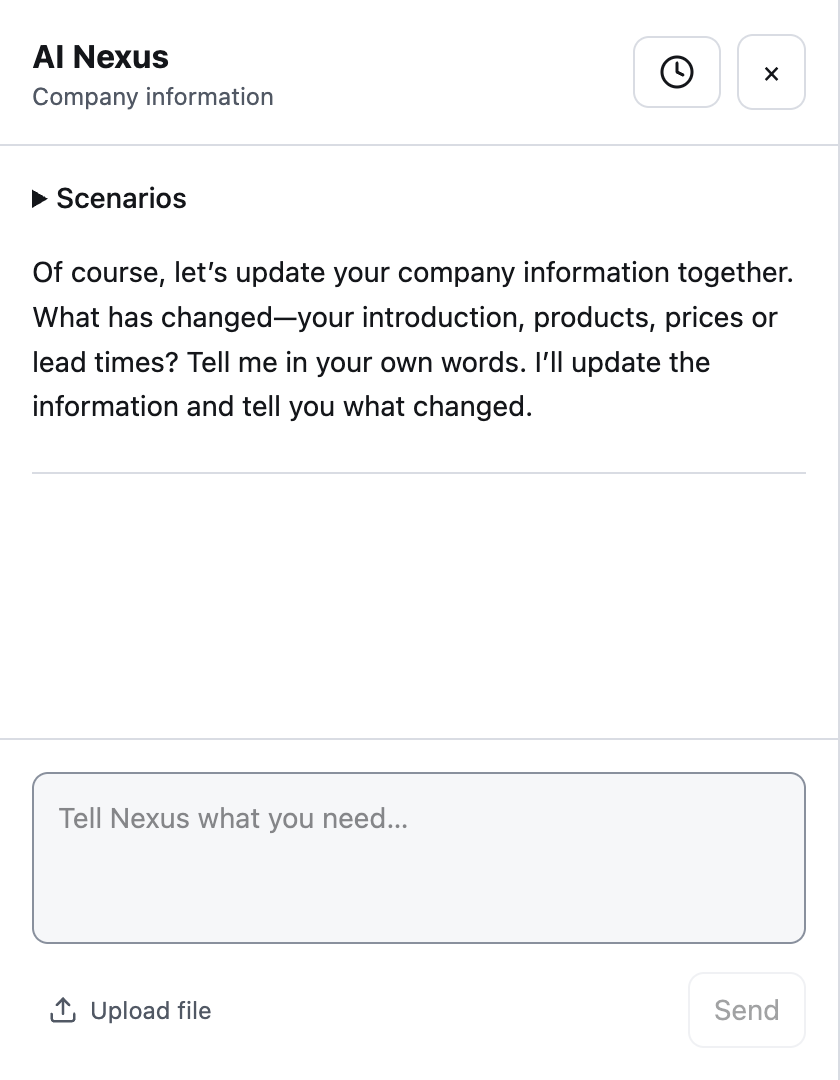
Click the AI icon at the top left. Use the conversation to update company information and lasting reply preferences. You do not need to create separate Sales and Support agents in this interface.
Upload your knowledge base (the part that matters)
Use Upload file for files up to 10 MiB, or paste a public URL of up to 1,024 characters and ask Nexus to read it. Review the response and the saved facts in Business Intelligence; uploading a document alone does not prove every detail was saved correctly.
Start with the material needed for a few common customer questions:
- Product descriptions, model numbers and pack sizes.
- Prices, minimum orders and quantity tiers.
- Delivery, returns and warranty policies.
- Questions your customers actually ask, with verified answers.
Configure behavior and escalation
Describe the behavior you want: “Ask for quantity before a bulk quote. If freight is missing, ask me to confirm it. Hand discount requests to a person.” Supported company and preference updates can apply as Nexus works; read the result to see what was saved.
Use Try current reply settings to test separately. Include a question whose answer is deliberately missing from your materials, so you can inspect how the assistant handles uncertainty. See the worked reply tutorial for an example.
Start in draft mode
In Takeover Settings, choose Suggest. Review the answer against the original question and business facts. Revise incorrect drafts before sending and correct the underlying information when necessary.
| Mode | How to use it |
|---|---|
| Solo Suggest | Review drafts before sending |
| Solo Auto | Delegate permitted routine replies once you have tested the setup |
| Solo Watch | Write replies yourself while CRM and translation assist |
| Team | Route AI drafts to human reps through Telegram or the Enterprise Inbox |
Rewriting a draft does not send it. Use Approve & Send after review. See the mode guide for the details.
Once It's Running
Answer after-hours questions with clear boundaries. Configure a takeover schedule if you want AI assistance outside your working hours. Keep the desktop running and connected. When a question requires your confirmation, the response should make that next step clear.
Keep customer context after the reply. A product preference, concern or delivery requirement can contribute to the customer's CRM record. Today's Plan, the daily briefing, helps you review who needs attention and which promises are due. See AI CRM and follow-ups.
Ask for missing facts. A focused clarification can ask you for information needed to complete a reply. Check the answer and saved business information before reusing it. Complaints, negotiations and exceptions should follow your human handoff rules.
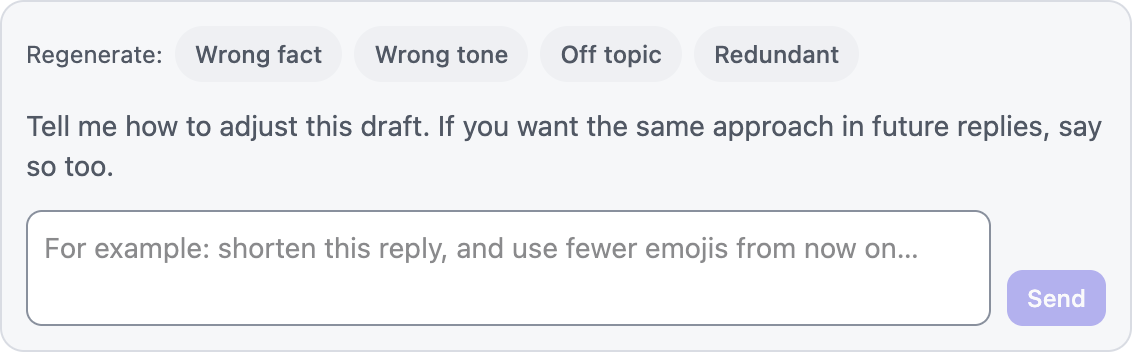
Learn from corrections. An incorrect fact needs a company-information update. Repeated wording corrections can contribute to learning suggestions for review. The learning tutorial explains acceptance, revocation and the separate, gentler-only automatic pacing adjustment.
Things People Get Wrong
Treating a document upload as validation. Test product variants, quantities, price units and an unanswerable question. A plausible draft can still be wrong.
Treating a catalog as live inventory. A catalog is a snapshot. For stock or order status, let the AI look up your own spreadsheet; replies quoting a price or delivery time from it wait for your approval.
Assuming every feature uses the same approval rule. Routine replies depend on the selected mode. Promise follow-ups require approval. Separately started win-back campaigns generate messages at send time without per-message preview. Check the relevant workflow before enabling it.
Leaving old business facts in place. Update prices and policies when they change, then retest a question that depends on the update.
What Changes Once It's Running
Judge the assistant on the work it helps you complete. Use a small set of representative inquiries and record:
| Check | What to inspect |
|---|---|
| Answer quality | Correct product, unit, price and conditions |
| Missing facts | Appropriate clarification or handoff |
| Review effort | Which edits remain necessary and why |
| Customer tracking | Whether needs and next steps were captured correctly |
| Follow-through | Whether a due commitment surfaced with the right context |
These are evaluation criteria, not promised speed or conversion improvements. Use your own results to decide what to delegate.
Frequently Asked Questions
Can I set an auto reply on a personal WhatsApp account?
Not in the standard WhatsApp app; it has no away or greeting messages. You can move the number to the free WhatsApp Business app and use away messages or Meta Business Agent, or connect the account to an AI assistant on your computer such as WhatsApp AI Pro, which is an independent third-party app, not an official WhatsApp product.
Can I auto reply on WhatsApp on an iPhone?
Yes, with the WhatsApp Business app, which is available on iPhone. WhatsApp AI Pro runs on your computer and links to the account the way WhatsApp Web does, so the phone can be an iPhone or an Android.
Does iPhone's Driving Focus auto-reply work for WhatsApp?
No. The auto-reply in iPhone's Driving Focus answers in Messages only; WhatsApp chats get no reply. Use one of the options above.
Can WhatsApp suggest replies with AI?
WhatsApp's Writing Help, upgraded in March 2026, can suggest a reply based on the conversation where the feature is available. You still choose and send each reply, so it does not answer while you are away.
How do I turn off auto reply on WhatsApp?
In the WhatsApp Business app, open Tools, tap Away message and turn off Send away message; do the same under Greeting message. If Meta Business Agent is on, turn it off from Tools as well. In WhatsApp AI Pro, set Takeover Settings to Suggest to get drafts only, or Watch to write replies yourself.
Does WhatsApp auto-reply need the Business API?
No. Away messages, greeting messages and Meta Business Agent are part of the WhatsApp Business app, and WhatsApp AI Pro connects through the desktop WhatsApp Web route without the Business API. Platforms on the API suit teams and high volume. Compare both the connection method and the AI workflow before choosing.
Is AI auto-reply better than WhatsApp Business's built-in auto-reply?
Use an away message when you need an acknowledgment. Use a knowledge-based AI assistant when you want help answering product questions and continuing the customer conversation. Test the answer quality using your own business information.
Can it handle multiple WhatsApp numbers?
The desktop supports multiple WhatsApp accounts. Review the active session and its takeover settings before using automation. In the 2.1 interface, company facts and lasting reply preferences are managed through one Nexus conversation rather than a separate agent-creation flow.
Can it reply in my customer's language?
It supports multilingual replies and translation, including over 90 languages. Test the language and product terminology your customers use; the translation tutorial explains the controls.
What if the AI doesn't know the answer?
Configure it to ask for clarification or hand off instead of guessing. Inspect that behavior with a test question that your materials cannot answer, and review the draft before sending.
Will WhatsApp ban my account?
No tool can guarantee account safety. WhatsApp AI Pro is an independent tool using WhatsApp Web; unofficial automation can carry account and reliability risks. Draft approval lets you review content but is not a guarantee against restrictions.
How much does WhatsApp AI auto-reply cost?
Pro is listed at $49/month or $499/year. See current pricing for trial, plan and refund terms. Choose based on the full workflow and operating requirements as well as the subscription.
Download WhatsApp AI Pro → connect your account → add verified business facts → review your first draft → inspect the customer record and next step.
More customer workflows: Voice messages and AI replies · Prioritizing real buyers in a busy inbox · WhatsApp for exporters.
Related guides: AI reply setup · AI CRM · AI sales workflow · Full-workflow AI.