
WhatsApp Auto Translate: Messages, Voice Notes and Your Replies
WhatsApp's built-in translate is one message at a time. On desktop, WhatsApp AI Pro auto-translates every message and voice note and sends your reply in the customer's language.
Can WhatsApp translate automatically? The phone app can translate a message you tap on (launched September 2025; six languages on Android, 19+ on iPhone, and nothing announced for WhatsApp Web or desktop as of October 2026). For a business chatting in several languages all day, that is one tap per message. WhatsApp AI Pro translates every chat on your computer instead: incoming messages and voice notes are translated as they arrive, and your reply goes out in the customer's language. It works on the WhatsApp account you already use, personal or WhatsApp Business app, linked by QR code the way WhatsApp Web is.
Translation in WhatsApp AI Pro needs no setup and has no switches to find — but knowing how it behaves makes it dramatically more useful, especially the part where pressing Enter translates your outgoing message automatically.
🎬 2-minute demo path — showing this live?
- Open a chat with foreign-language messages → every incoming bubble has its translation right underneath.
- Play a voice note → transcript and translation appear below it.
- In Watch mode, point at the green bar above the input box, type a sentence in your language, hit Enter → it arrives in theirs.
Incoming messages: auto-translated under every bubble
Nothing to turn on. Every incoming text message gets its translation injected directly below the original bubble, and the session header shows a badge — Translate → English (or your language) — confirming it's active.
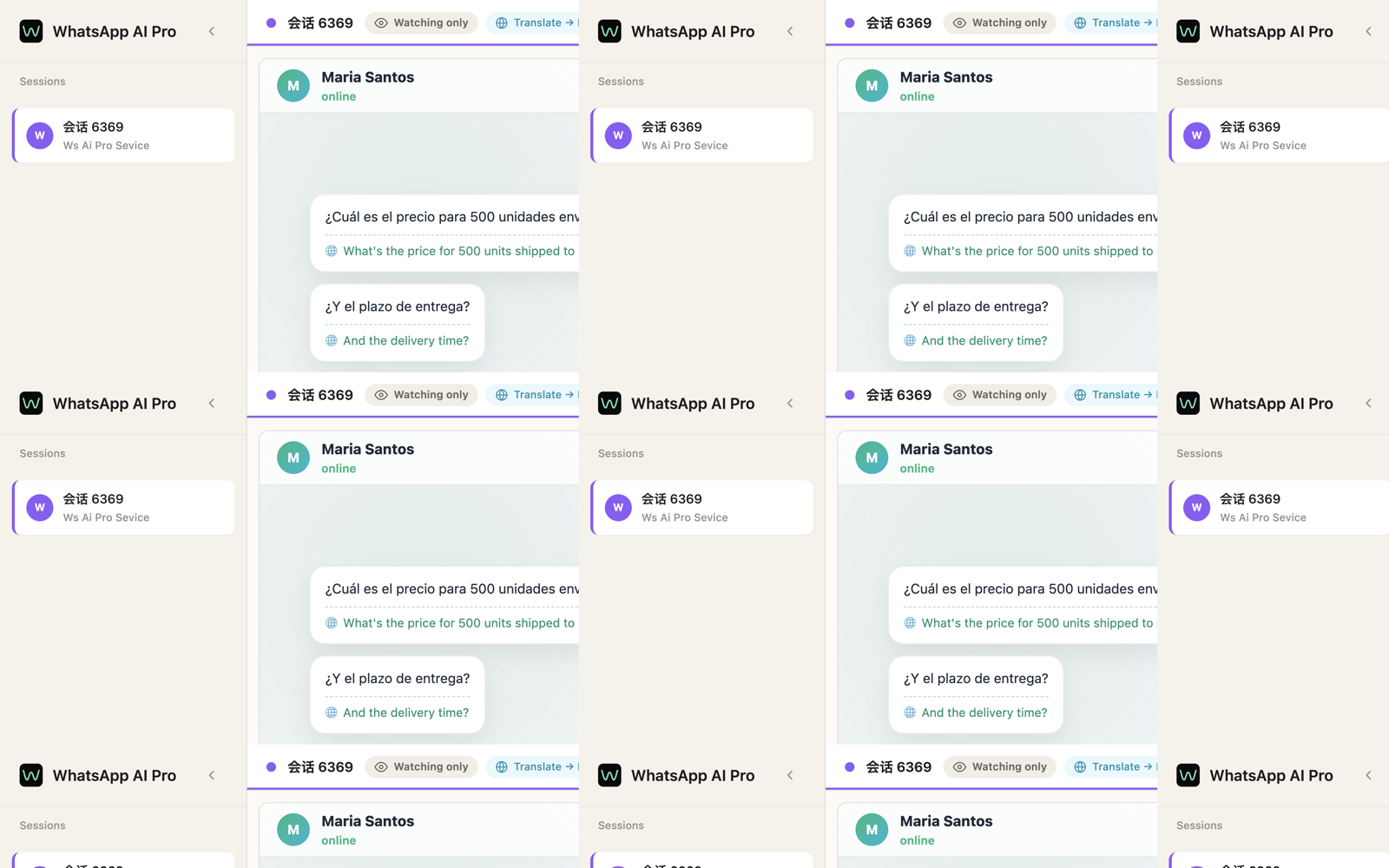
- What language do translations appear in? Your interface language. Change it via your avatar (bottom of the sidebar) → Interface Language — English, 中文, Español, Português, ไทย, or Follow System. Translations follow immediately.
- A message already in your language just gets a small "already in the target language" note instead of a duplicate.
- If a translation hiccups, there's a Retry right on the message.
Voice notes: transcribed and translated
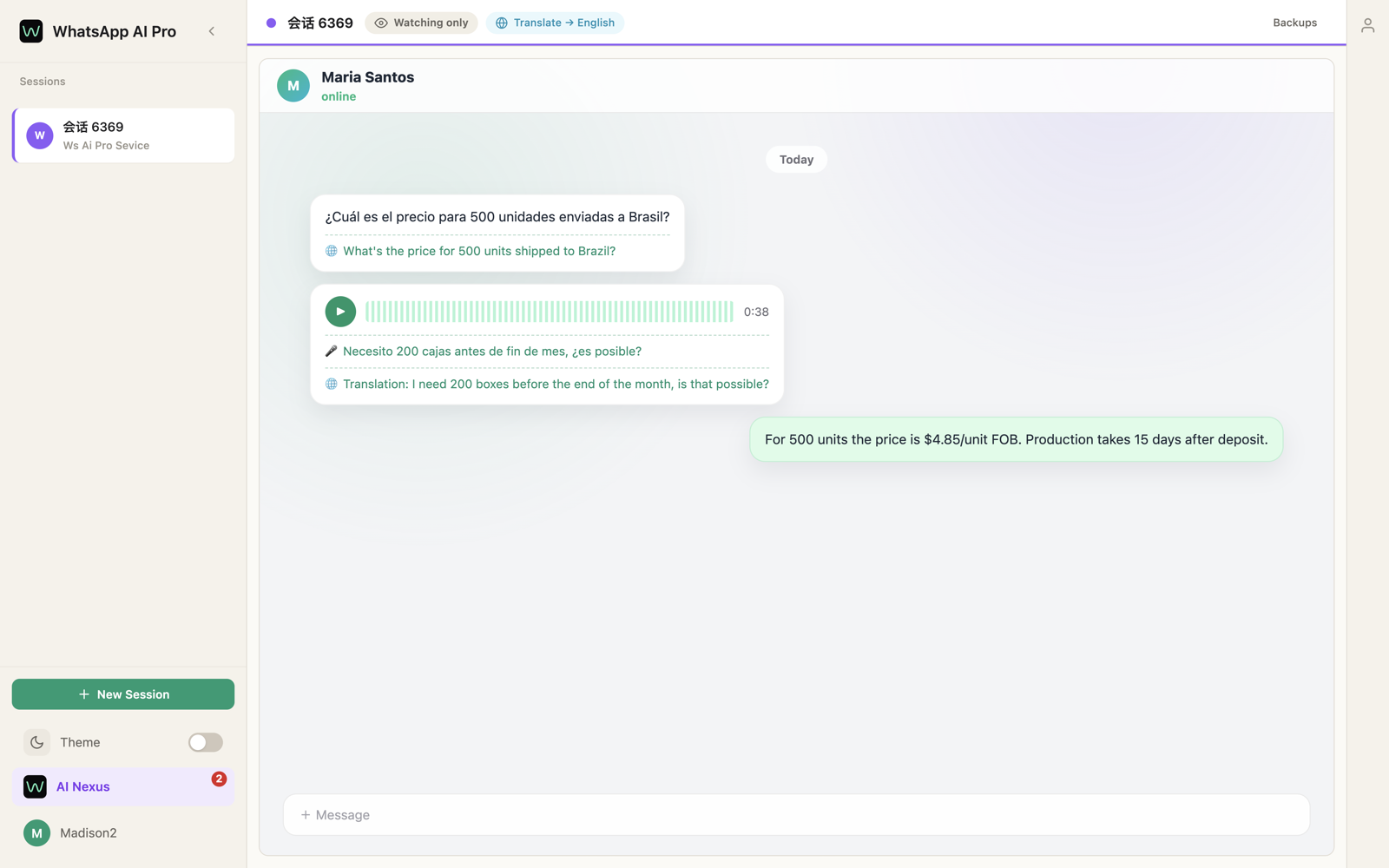
Voice messages get the same treatment automatically: a transcript appears under the audio player, followed by a translation into your language. Long customer voice notes stop being homework — and the AI reads the transcript too when it drafts replies.
Outgoing: type in your language, press Enter
This is the feature people miss, because it only appears where it makes sense. In Watch mode (and Team mode) — the modes where you type the replies — a green bar appears above the input box once the app knows the customer's language:
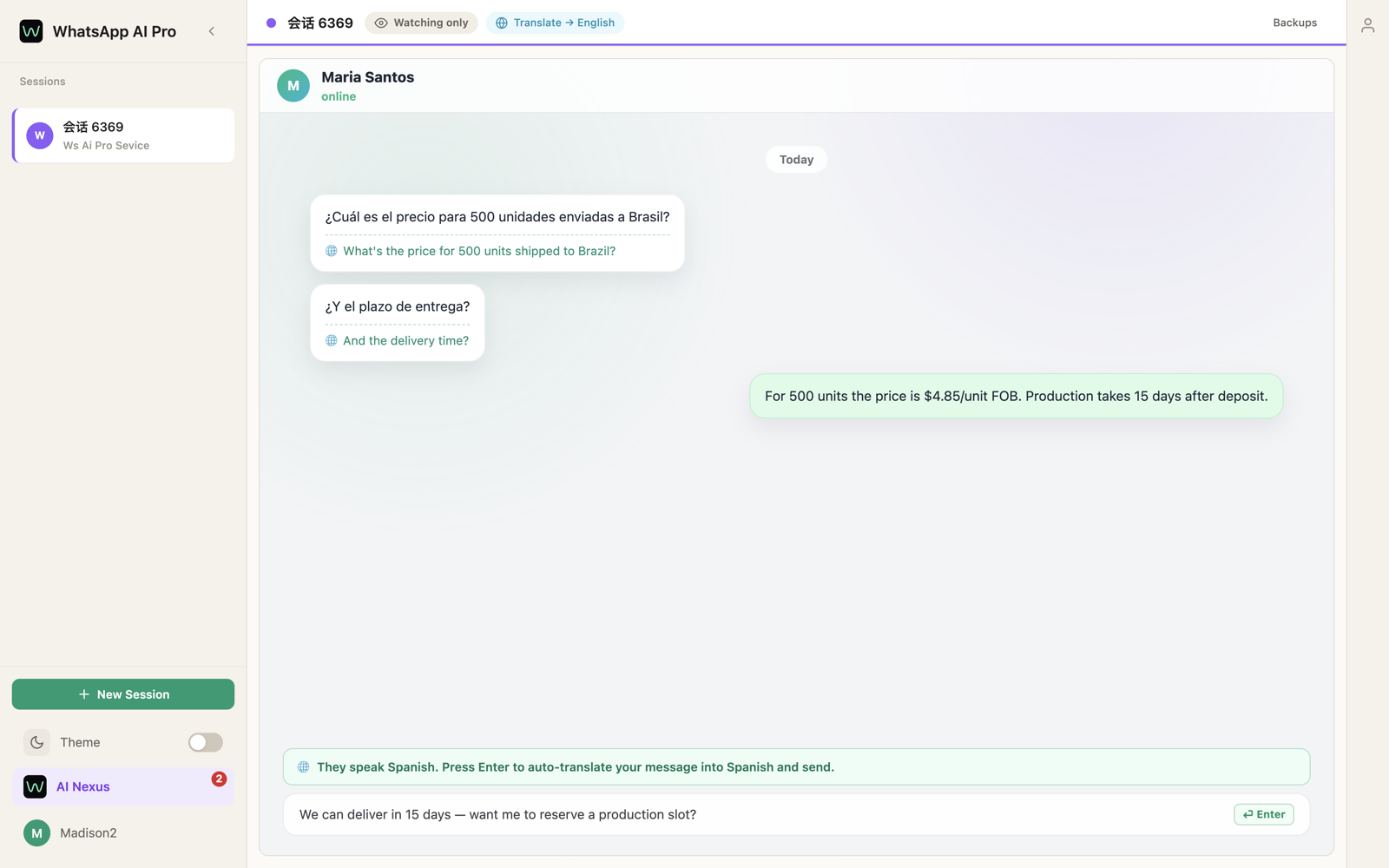
They speak Spanish. Press Enter to auto-translate your message into Spanish and send.
Type your reply in your own language, press Enter — the customer receives it in theirs. That's the entire workflow. Details worth knowing:
- It detects the customer's language for you — no picking from a list. The app watches what the customer writes, and once it's confident (after a few messages), the green bar appears. Before that, Enter just sends normally.
- If the customer already writes your language, no translation happens — Enter sends as-is.
- It never sends untranslated by accident. If translation fails, your text stays in the box with an error note; press Enter to retry.
- Group chats are left alone — this works in one-on-one customer chats.
- In Auto/Suggest modes the bar shows "AI will reply in Spanish" instead — the AI is doing the replying there, in the right language already, so Enter isn't intercepted.
✓ You've got it when you type one sentence in your language, hit Enter, and see it arrive in the customer's — check the chat, the sent bubble is the translation.
Things that trip people up
"The green bar isn't showing." Either you're in Auto/Suggest mode (the AI replies there — switch to Watch if you want to type yourself), or the app hasn't seen enough messages from this customer to be sure of their language yet. A few more messages and it settles.
"Translations are in the wrong language." They follow your Interface Language setting — check your avatar menu. "Follow System" uses your computer's language.
"Does the customer know I'm translating?" No. They receive a normal WhatsApp message in their language — no labels, no "translated by" tags.