
WhatsApp AI Replies: A Product Knowledge Setup Tutorial
Teach your WhatsApp AI your products and prices, test a customer question, verify the draft and correct missing facts before sending. A worked Nexus tutorial.
Version guide: these steps describe the desktop 2.1 interface. The download page shows the version currently available.
Use WhatsApp AI Pro to turn your product information into a customer reply you can check before sending. This tutorial follows the whole setup: provide business facts, test a question, compare the draft with its source, correct a problem and approve the answer.
AI Nexus gives you one place to discuss company information and lasting reply preferences. You do not need to choose or create a separate Sales or Support agent. A request can change both facts and writing style in the same conversation. Replies then connect with customer memory and follow-ups as part of the full-workflow AI assistant.
1. Open the conversation
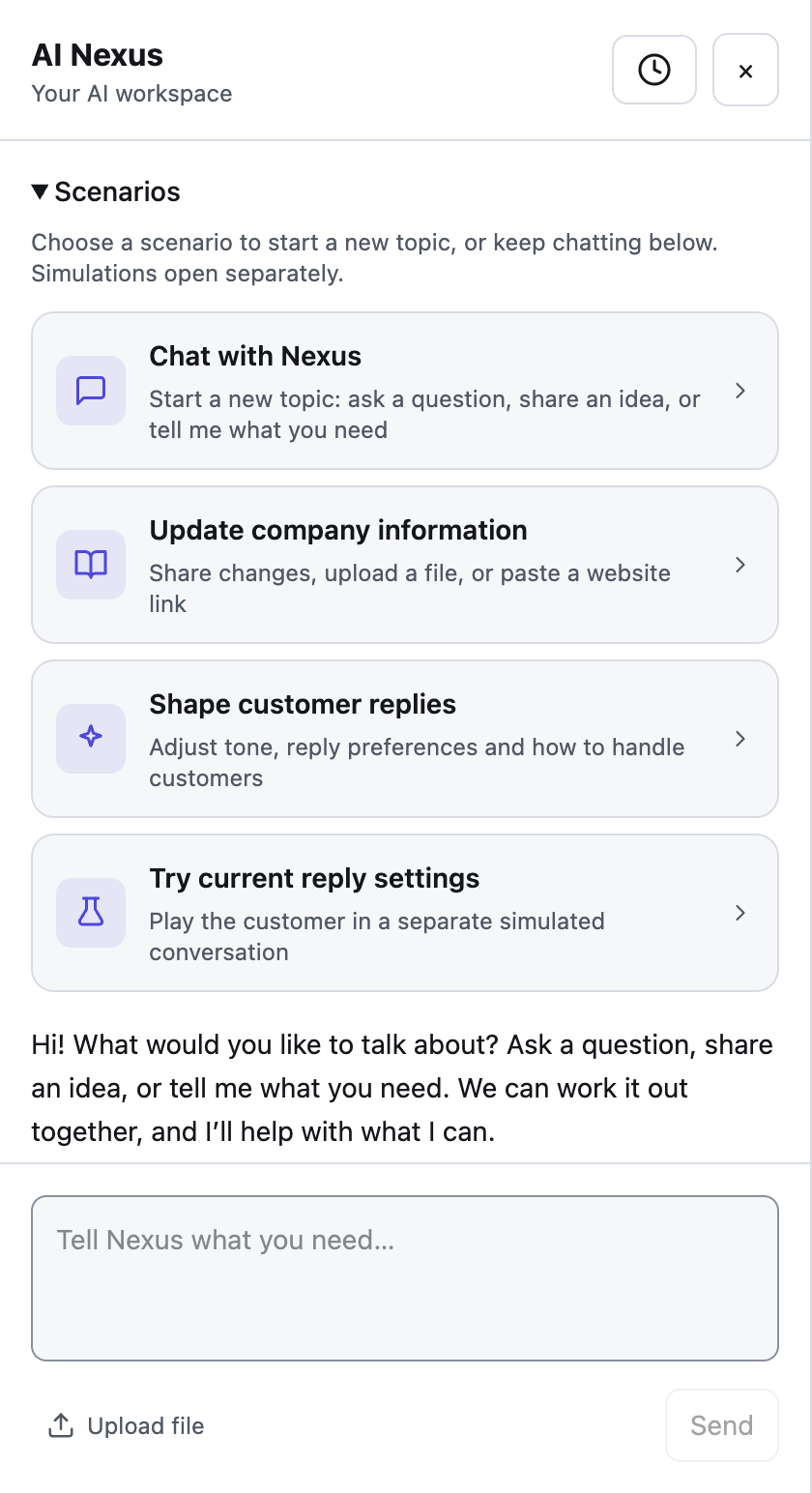
Click the glowing AI icon at the top left. The conversation slides in from the left and the session sidebar becomes compact. Pick Update company information, Shape customer replies, or Chat with Nexus. Each starts a fresh conversation with a friendly prompt; you can simply reply. These are starting points, not restrictions on what you can discuss.
2. Add real company information
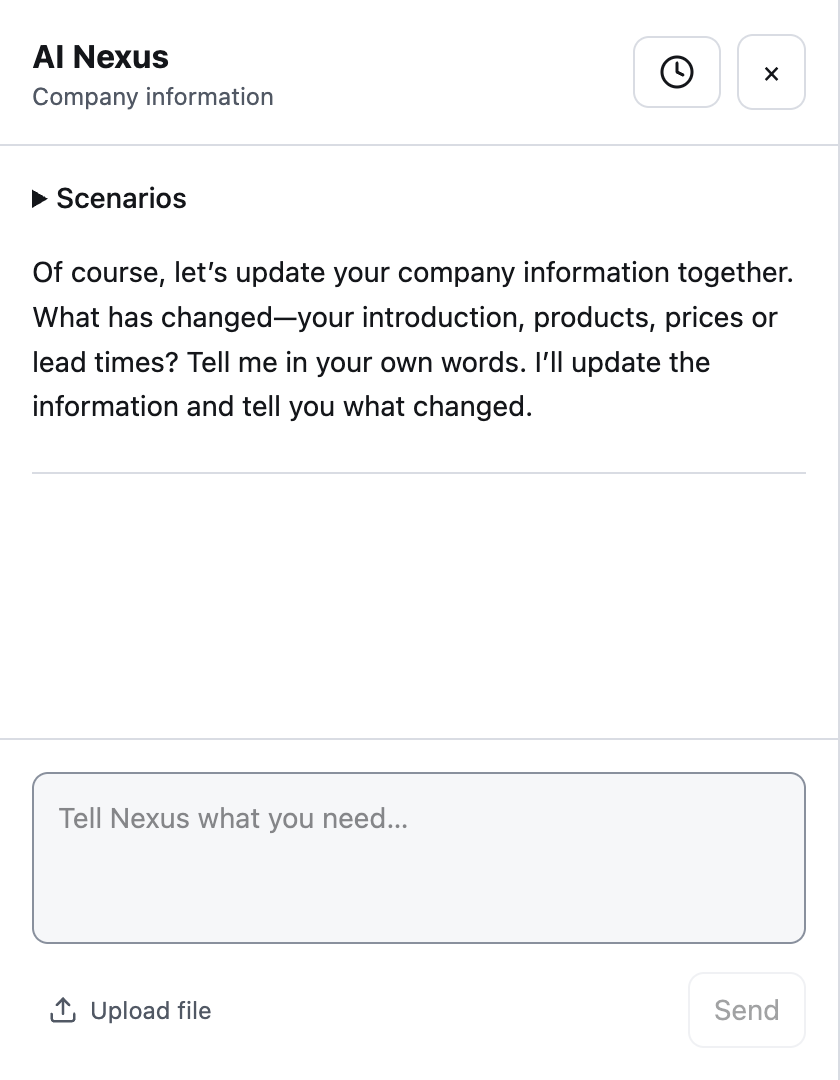
Try: “Our company is Cedar Supplies. We sell replacement filters. The standard pack is NZD 92, MOQ 30. Delivery is 16 working days.” Use your actual facts rather than this example.
For existing materials, use Upload file to choose a file, or paste a public website link into the conversation and ask Nexus to read it. Files must be at most 10 MiB; links must be at most 1,024 characters. Folder import is not part of this flow. A page that requires a login or blocks access may not be readable; upload the relevant document instead.
Nexus reads the source and updates company information when your instruction requests it. Uploading a source alone is not proof that every fact was saved: read the result, then check the relevant fields in Business Intelligence. If information is missing, give the correction in the same chat.
3. Test a question against the saved facts
Use Try current reply settings to open the separate simulation sandbox. This does not send a message to a customer. The following is a fictional example to illustrate what to check, not a recorded customer conversation.
Suppose you saved: “A standard filter pack costs NZD 92. Minimum order: 30 packs. Delivery: 16 working days.” Ask:
“Can I order 10 packs, and will they arrive next week?”
A suitable response should explain that 10 packs is below the 30-pack minimum and give the stated delivery term. It should not accept the smaller order or promise next-week arrival. If the policy does not specify when the delivery period starts, confirm that separately instead of letting the draft invent a starting date.
| Check | What must match |
|---|---|
| Product and unit | NZD 92 is per pack, not per individual filter |
| Minimum quantity | 30 packs; exceptions need your decision |
| Delivery | 16 working days; no unsupported earlier date |
| Missing information | Freight, tax or an exception should be confirmed if not supplied |
Next ask a question whose answer you did not provide, such as “What is the freight cost to Wellington?” Inspect whether the draft requests the missing detail or calls for confirmation. Supplying a catalog does not guarantee every generated answer is correct.
4. Correct the draft and the source when needed
If the price was saved incorrectly, return to Nexus, update the company information and check Business Intelligence. A wording change alone does not fix the saved price.
For a pending desktop draft, use Tell AI how to adjust. For example: “State the minimum order clearly and ask whether 30 packs would work.” Review the revision. Add “from now on” when you explicitly want a lasting preference, then check what Nexus reports as saved.
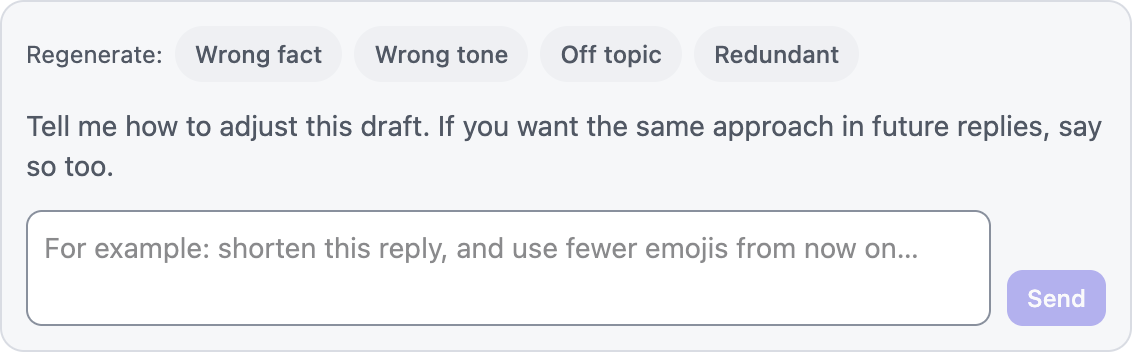
Repeated edits and rejections can also contribute to learning suggestions. Those proposals have their own acceptance and revocation controls; correcting a draft is not a promise that every future answer will change automatically.
Check before your first send
Review products, prices and trade terms in Business Intelligence. Open Takeover Settings and choose Suggest so incoming customer messages become drafts for your review. In the same place, check the Reply style (Warm & lively by default; see the reply style guide). After linking WhatsApp, ask a colleague to send a test question. Read the draft, use Tell AI how to adjust if needed, then Approve & Send. Rewriting alone never sends a message.
After sending, inspect the customer's record and next action in AI CRM. Check what was captured about the product, quantity and remaining question. That is how a first reply becomes useful context for the next conversation.
Frequently Asked Questions
Can AI answer WhatsApp questions from a PDF product catalog?
Upload the document through Nexus and request the company-information update, then inspect the saved facts and test representative product questions. File upload supports files up to 10 MiB. Uploading alone does not verify extraction or answer accuracy.
Does testing send a WhatsApp message?
The separate simulation sandbox does not send a customer message. A live draft in Suggest mode requires your approval. Rewriting the draft alone does not send it.
Does a price list tell the AI what is in stock now?
No. For stock or order status, let the AI look up your own spreadsheet; replies quoting a price or delivery time from it wait for your approval.
For lasting reply preferences and Nexus history, continue with the AI Nexus guide. Telegram and Inbox retain their existing workflows.