
AI Nexus Tutorial: Adjust Reply Style and Test Your Assistant
Pick a reply style, use one AI Nexus to update lasting reply preferences, test customer conversations, and refine a pending desktop draft.
Version guide: these steps describe the desktop 2.1 interface. The download page shows the version currently available.
AI Nexus gives you one place to discuss company information and lasting reply preferences. You do not need to choose or create a separate Sales or Support agent. A request can change both facts and writing style in the same conversation.
1. Open the conversation
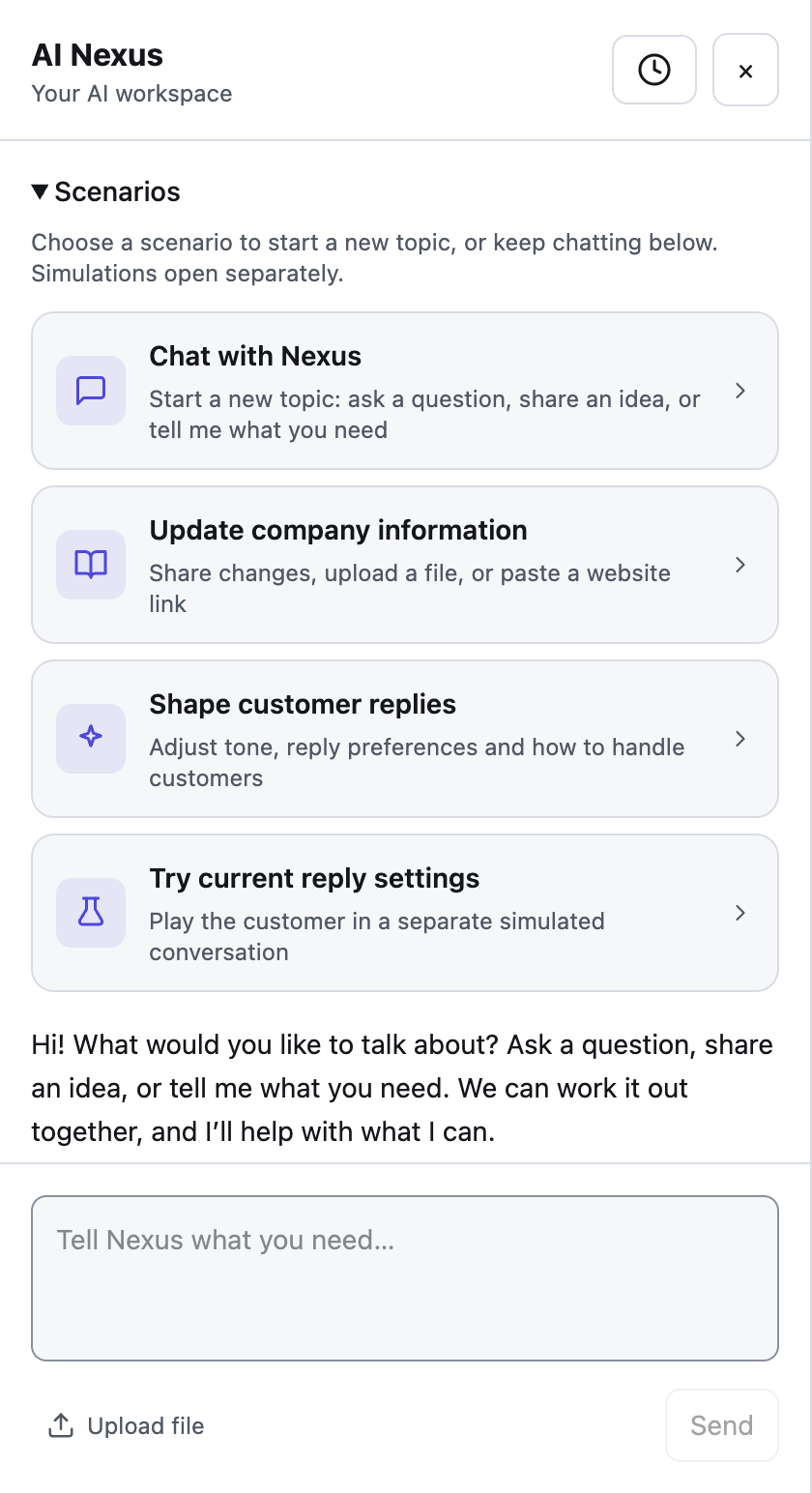
Click the glowing AI icon at the top left. The conversation slides in from the left and the session sidebar becomes compact. Pick Update company information, Shape customer replies, or Chat with Nexus. Each starts a fresh conversation with a friendly prompt; you can simply reply. These are starting points, not restrictions on what you can discuss.
2. Choose a reply style
New in desktop 2.1.15. Earlier versions do not show this section.
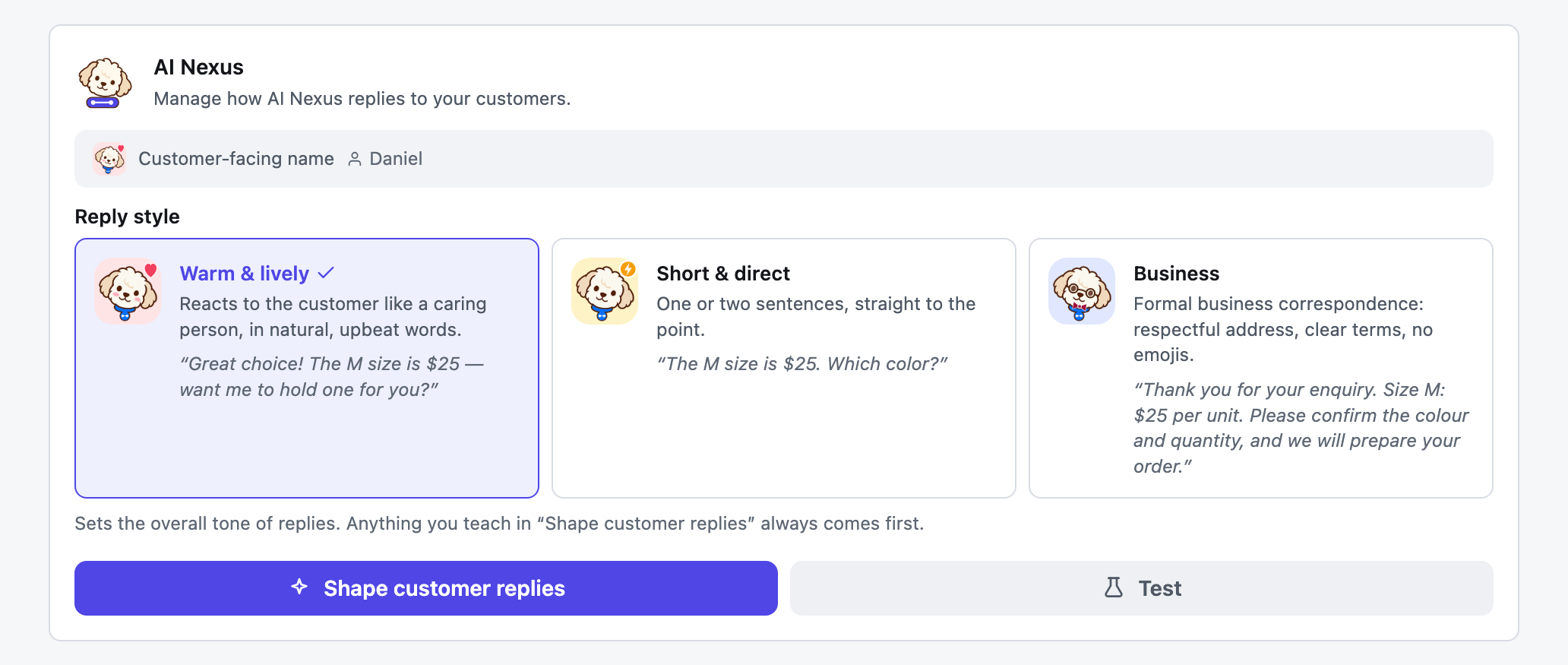
Open Dashboard → Takeover Settings. On the AI Nexus card, under Reply style, pick one of three presets. Each card shows a sample reply, so you can compare them before choosing.
- Warm & lively (the default): reacts to what the customer said like a caring person, in natural, upbeat words. An emoji is optional, not the point.
- Short & direct: one or two sentences, straight to the answer, no small talk.
- Business: formal business correspondence. It addresses the customer respectfully, thanks them for the enquiry, lays out prices and terms clearly, and uses no emojis.
The change applies from the next reply. What a style does and does not change:
- Only replies to customer messages. Drafts, their rewrites and the Test sandbox use the style. CRM follow-ups and broadcasts keep their own wording.
- Never the facts. Prices, availability and when to hand a chat to your team are the same in every style.
- Your own instructions come first. A preset sets the overall tone. Anything you teach in Shape customer replies (step 3) wins where the two disagree. For example, "add an emoji to every message" still applies with Business.
3. Change future reply behavior
A preset covers the overall tone. For anything more specific, tell Nexus.
Try: “From now on, keep replies to two short sentences and avoid emojis. Ask for quantity before giving a bulk quote.”
Reply tone and reception requirements are saved as lasting guidance (called refinement internally). Company prices and product facts remain company information. You can combine them: “Our MOQ is now 30. Keep replies concise from now on.”
Supported changes are applied directly as Nexus works. There is no separate Confirm apply step and no Finish / summarize training action. Check the response for what actually succeeded; a stopped or failed exchange does not undo changes already completed.
4. Try a customer conversation separately
Choose Try current reply settings or use Test in Takeover Settings. This opens the separate simulation sandbox. Ask a realistic customer question, compare the answer with your facts, then return to Nexus if you want to adjust them. A simulation does not send a message to a customer, and is not a guarantee that every future answer will be identical.
5. Adjust one pending draft without leaving it
Under a desktop draft, click Tell AI how to adjust. A small conversation opens inside the draft view. Choose Wrong fact, Wrong tone, Off topic, or Redundant to submit the corresponding adjustment instruction, or type your own. The AI generates a revised draft; continue typing to refine it further.
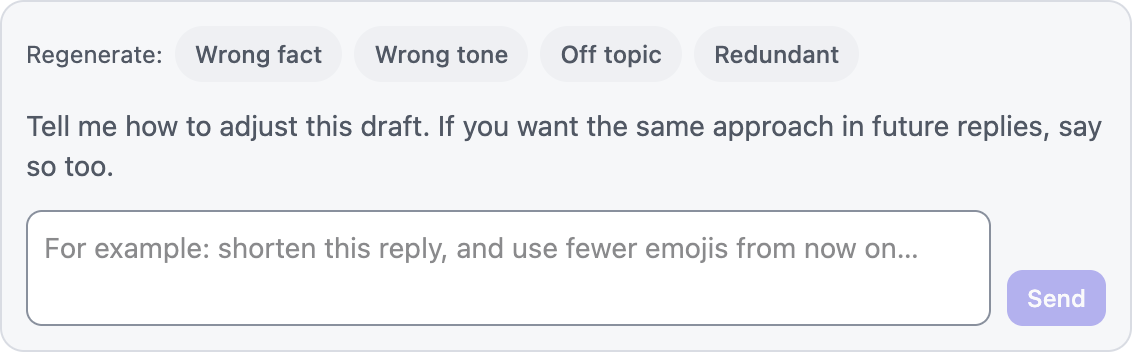
“Shorten this reply” changes this draft. “Shorten this reply, and use fewer emojis from now on” also requests a lasting preference. Be explicit when you want a future rule. Each draft has its own fresh context; this small window does not store persistent conversation memory.
Rewriting is not sending: review the revised text and use Approve & Send when ready. The existing Telegram and Enterprise Inbox approval interfaces have not been replaced by this desktop chat.
Read the complete AI Nexus 2.1 guide for imports, history, and feature boundaries.