
AI Nexus 2.1 Guide: Company Knowledge, Reply Style, and Draft Adjustments
A practical guide to the desktop 2.1 unified AI conversation: update company information, save reply preferences, and adjust an individual draft.
Version guide: these steps describe the desktop 2.1 interface. The download page shows the version currently available.
AI Nexus gives you one place to discuss company information and lasting reply preferences. You do not need to choose or create a separate Sales or Support agent. A request can change both facts and writing style in the same conversation.
1. Open the conversation
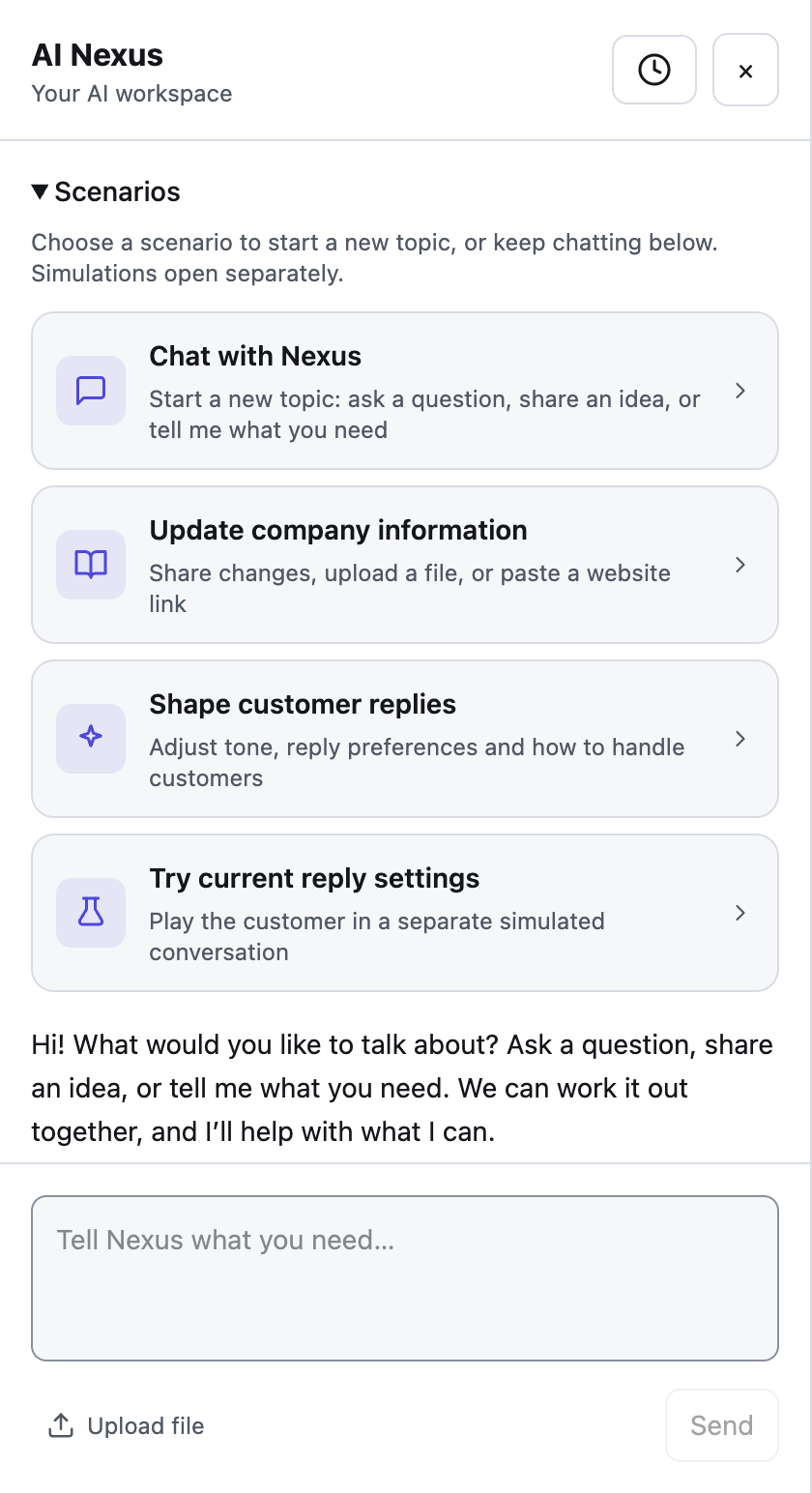
Click the glowing AI icon at the top left. The conversation slides in from the left and the session sidebar becomes compact. Pick Update company information, Shape customer replies, or Chat with Nexus. Each starts a fresh conversation with a friendly prompt; you can simply reply. These are starting points, not restrictions on what you can discuss.
2. Add real company information
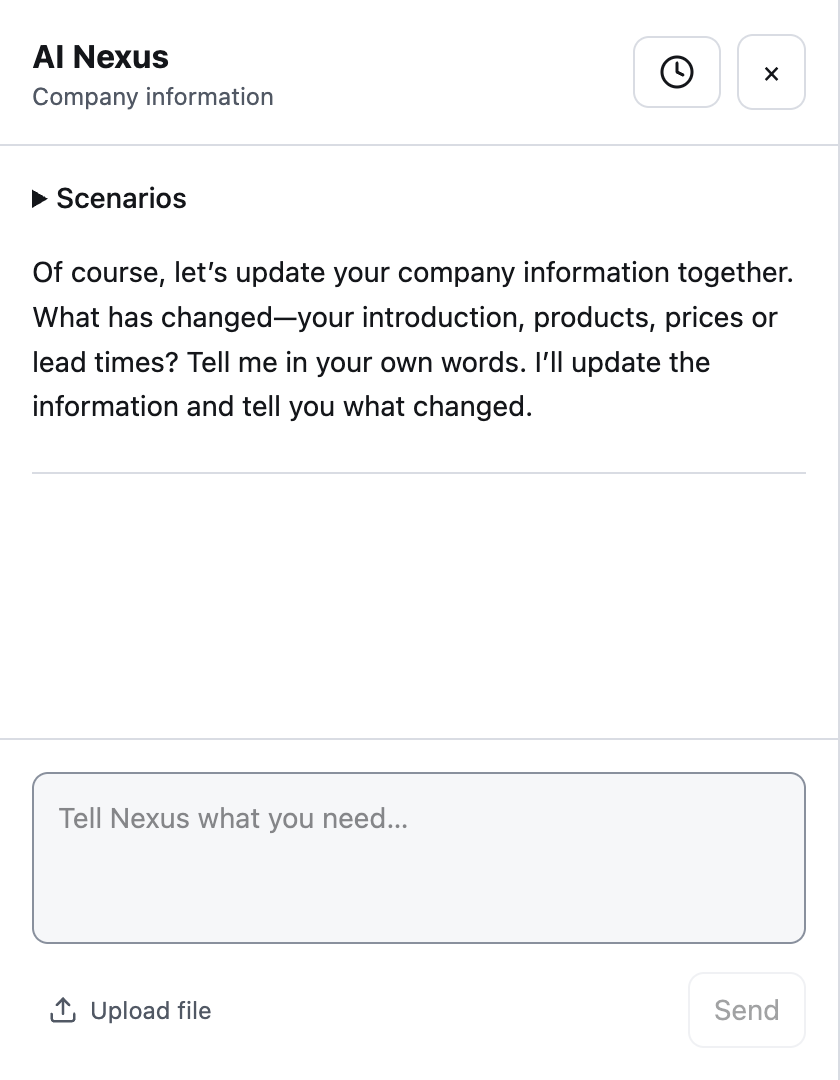
Try: “Our company is Cedar Supplies. We sell replacement filters. The standard pack is NZD 92, MOQ 30. Delivery is 16 working days.” Use your actual facts rather than this example.
For existing materials, use Upload file to choose a file, or paste a public website link into the conversation and ask Nexus to read it. Files must be at most 10 MiB; links must be at most 1,024 characters. Folder import is not part of this flow. A page that requires a login or blocks access may not be readable; upload the relevant document instead.
Nexus reads the source and updates company information when your instruction requests it. Uploading a source alone is not proof that every fact was saved: read the result, then check the relevant fields in Business Intelligence. If information is missing, give the correction in the same chat.
3. Change future reply behavior
Try: “From now on, keep replies to two short sentences and avoid emojis. Ask for quantity before giving a bulk quote.”
Reply tone and reception requirements are saved as lasting guidance (called refinement internally). Company prices and product facts remain company information. You can combine them: “Our MOQ is now 30. Keep replies concise from now on.”
Supported changes are applied directly as Nexus works. There is no separate Confirm apply step and no Finish / summarize training action. Check the response for what actually succeeded; a stopped or failed exchange does not undo changes already completed.
4. Try a customer conversation separately
Choose Try current reply settings or use Test in Takeover Settings. This opens the separate simulation sandbox. Ask a realistic customer question, compare the answer with your facts, then return to Nexus if you want to adjust them. A simulation does not send a message to a customer, and is not a guarantee that every future answer will be identical.
5. Adjust one pending draft without leaving it
Under a desktop draft, click Tell AI how to adjust. A small conversation opens inside the draft view. Choose Wrong fact, Wrong tone, Off topic, or Redundant to submit the corresponding adjustment instruction, or type your own. The AI generates a revised draft; continue typing to refine it further.
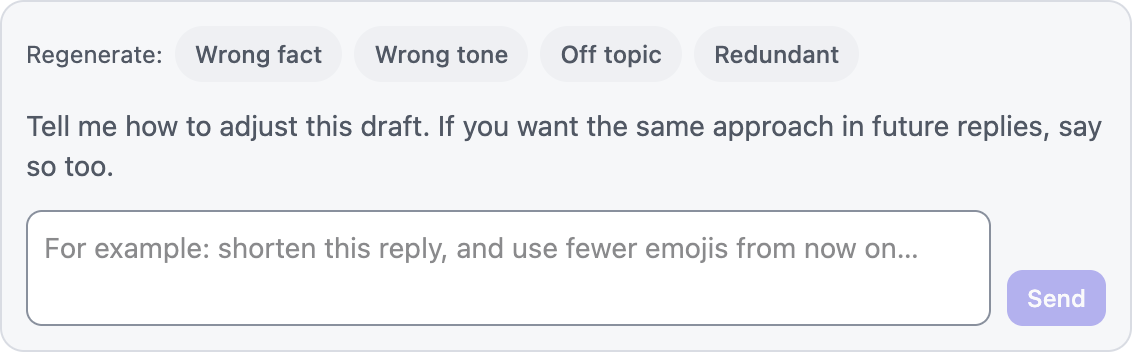
“Shorten this reply” changes this draft. “Shorten this reply, and use fewer emojis from now on” also requests a lasting preference. Be explicit when you want a future rule. Each draft has its own fresh context; this small window does not store persistent conversation memory.
Rewriting is not sending: review the revised text and use Approve & Send when ready. The existing Telegram and Enterprise Inbox approval interfaces have not been replaced by this desktop chat.
6. Continue without starting over
The main Nexus conversation has Conversation history at the top. Its history and summarized context are stored in the local workspace. Longer completed work can be summarized so subsequent requests do not resend all old text; summaries can lose detail, so restate an exact number or requirement when it matters. New scenarios start new conversations; they do not silently erase your business settings.
If you send another message while a response is running, it waits for the current response to finish. Use the stop control to interrupt generation. Already completed updates remain applied.
Use Nexus on the website
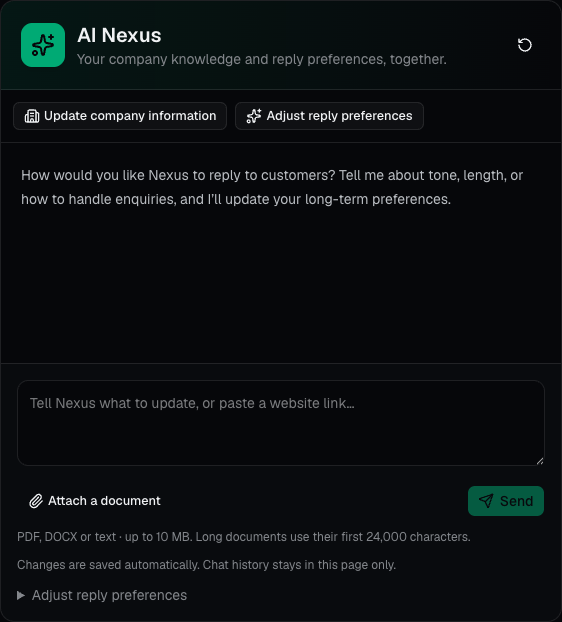
Sign in to the website Dashboard to update company information and long-term reply preferences in a smaller Nexus conversation. Choose a starting point, type your request, or attach a document. The company panel shows saved information. Web chat stays in the current page; it does not share the desktop's conversation history or persistent local memory.
What stays outside this conversation
Dashboard cards and their existing screens still handle clarification, CRM, learning, and research. The simulation sandbox stays separate. The website dashboard's Nexus flow focuses on company profile and reply preferences. It does not include desktop draft adjustment or persistent local conversation memory.