
Auto-forward Tutorial: Approve AI Replies From Telegram, Slack or WeCom
Forward AI drafts and handoff alerts to the chat app you already use — Telegram, Slack or WeCom — and approve, fix or reply to customers right there. Setup for each, in about 5 minutes.
Suggest mode means every AI reply waits for your approval — which is only practical if approving doesn't chain you to your desk. Auto-forward sends each draft and each handoff alert to the chat app you already have on your phone: read the draft, tap a button, done.
You can forward to one of three apps:
- Telegram — the quickest to set up; works anywhere.
- Slack — if your team already lives in a Slack workspace.
- WeCom (企业微信) — for teams in mainland China, where Telegram and Slack aren't practical.
Setup lives in Dashboard → Takeover Settings: click the Auto-forward card and a panel opens on the right. At the top, Forward to lists Off / Telegram / WeCom / Slack, each with a status (Not set up, Not linked yet, Connected…). Pick one and that channel's setup steps appear below it.
🎬 2-minute demo path — showing this live?
- Show a draft notification on your phone: customer message + AI draft + buttons.
- Tap Approve → the reply sends from WhatsApp on the desktop.
- On the next one, tap Wrong tone → a regenerated draft arrives in seconds.
Step 1 — Pick a channel and connect it
Forwarding goes to one channel at a time. Picking a channel you haven't set up yet only opens its setup; forwarding moves over once it's connected and linked. Switching away from a working channel asks you first.
Telegram
- In Telegram, search @BotFather, send
/newbot, and copy the token it gives you. - Paste it into the Telegram Bot Token field.
- Send
/startto your new bot in Telegram. - Click Bind Telegram.
Then hit Test Connection — a test message should appear on your phone.
Slack
- Click Create the App in Slack. Slack opens with everything pre-filled: pick your workspace, then Create.
- In the App's left menu open Install App → Install to Workspace, copy the Bot User OAuth Token (starts with
xoxb-) and paste it into the first field. - Open Basic Information → App-Level Tokens → Generate. Any name works; add the
connections:writescope, then copy the token (starts withxapp-) into the second field. - Back in the app, choose yourself under Who are you? — a ✅ Connected message arrives in your Slack DMs with the App.
Notifications go to your direct messages with the App.
WeCom (企业微信)
- In WeCom open Workbench (工作台) → Smart Bot (智能机器人应用) → Create bot → Create manually → Create in API mode. This works in the phone app too.
- Set the visible range to yourself.
- Under API settings choose Use long connection, copy the Bot ID, click Get for the Secret, and paste both into the panel.
- Find the bot in WeCom (Contacts → Created by the company) and send it the link code shown in the panel. The code works for 10 minutes; a new one appears when it runs out.
Then hit Send test and check WeCom.
✓ Done when the channel shows Connected and the test message arrived on your phone.
Step 2 — Approve your first draft from your phone
From now on, every pending draft arrives as a message: the customer's words (with a translation when needed), the AI's draft, and buttons:
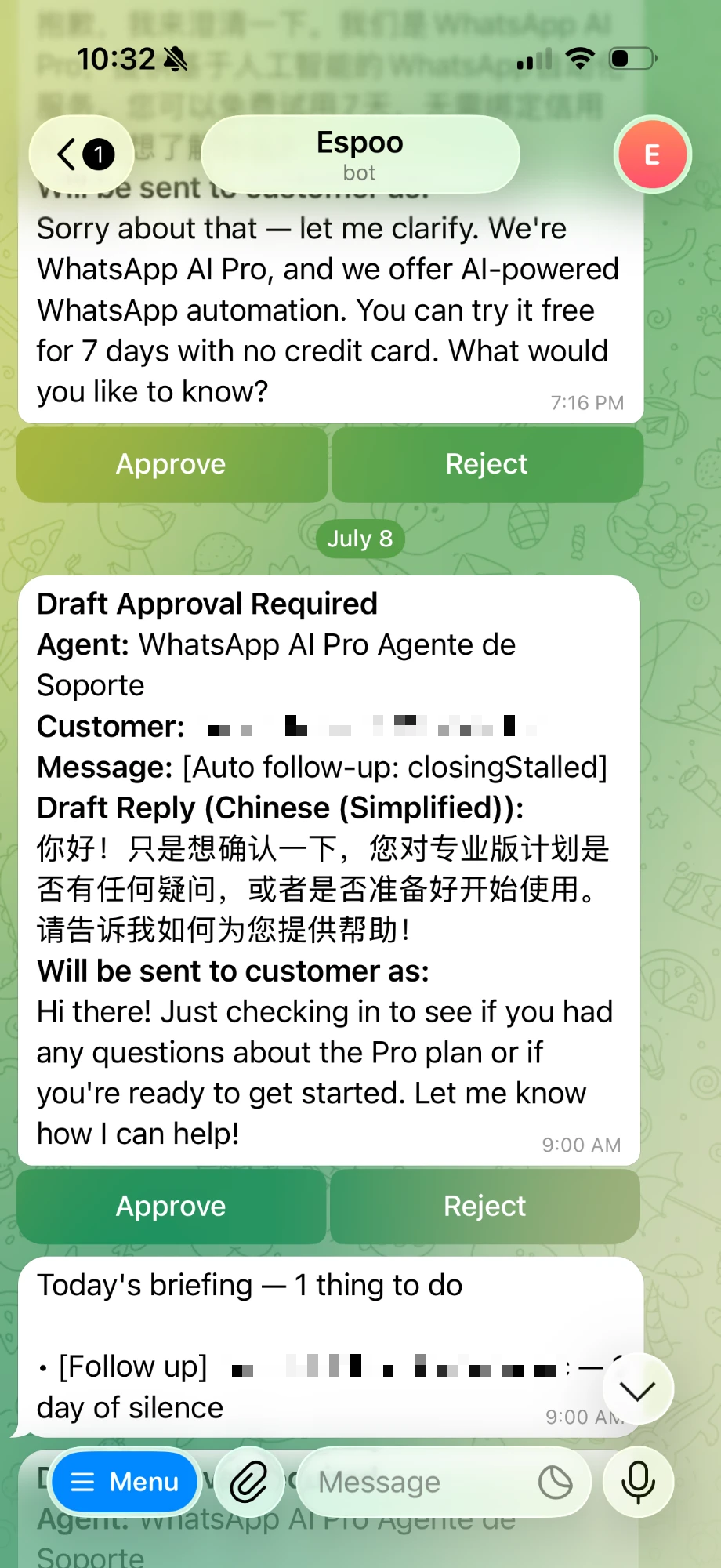
- Approve — the reply sends from your WhatsApp immediately.
- Reject — nothing is sent.
- Four fix chips — Wrong fact / Wrong tone / Off topic / Too wordy. Tap one and a corrected draft comes back in seconds, with fresh buttons.
- Reply with your own text — type your answer and it goes to the customer instead of the draft:
- Telegram: use Telegram's Reply on the notification, then type.
- Slack: reply in the notification's thread.
- WeCom: just type to the bot. It asks you to confirm sending it to the customer in the latest notification — tap Send.
The buttons follow your app language. In Telegram and Slack the notification text itself is in English; in WeCom it's in your app language too.
✓ Done when you've approved one draft and seen it sent — from wherever you happened to be standing.
Step 3 — Know what else lands on your phone
Beyond approvals, the channel you picked also gets:
- Handoff alerts — when the AI decides a conversation needs a human (a complaint, a tricky discount request), you get pinged with the reason.
- Your morning briefing — the same "N things to do today" list from the Dashboard, delivered daily.
Want everything back on the desktop only? Pick Off. Nothing is lost — drafts and alerts simply wait for you on the computer.
Working as a team
Everything above is the solo setup — one owner, one phone. If several people share the WhatsApp number, switch to Team mode: teammates join as seats, unclaimed conversations go to a shared pool to claim, and each customer gets their own topic or thread. That's covered in the Solo vs Team tutorial.
Things that trip people up
"Telegram's Test Connection fails." Re-check the token (paste it exactly), and make sure you actually sent /start to the bot — that's the step people skip.
"Telegram notifications stopped after I changed the bot token." Changing the token requires binding again — the panel shows "Bot key changed — bind again to restore notifications."
"Slack rejected the tokens." Both tokens must be copied in full, and the App must be installed to your workspace. If you pasted them into the wrong fields, the panel tells you which goes where. On a SOCKS proxy, Slack won't connect — use an HTTP proxy, TUN mode, or a direct connection.
"WeCom notifications are paused." WeCom only lets a bot message you within 24 hours of the last message you sent it. If you haven't written to the bot for a day, notifications pause and the app tells you so — send the bot any message and they resume. Drafts keep waiting on the desktop in the meantime.
"Can two computers use the same bot?" No — one Telegram bot, one Slack App or one WeCom bot connects to one computer only. Use a separate one per computer.
Next: Solo mode vs Team mode →