
Enterprise Inbox Tutorial: The Shared Support Workspace in Your Browser
No Telegram or Slack needed — reps open a web page, claim conversations, review AI drafts, and reply to customers. Three steps for the boss, zero installs for the team.
Inbox mode is the Enterprise way to run a support team: a shared web workspace. Reps sign in from a browser, claim conversations, approve AI drafts, and reply to customers — no Telegram or Slack, nothing to install on their machines. The desktop app keeps doing what it does best: staying connected to WhatsApp, running the AI, and syncing everything to the web in real time.
Who this is for. The Staffing mode switch at the top of Dashboard → Takeover Settings is the decision that comes before this tutorial:
- Solo mode — one person answers customers, with the AI as an assistant (Auto / Suggest / Watch). If that's you, you don't need Inbox — see Solo vs Team mode.
- Team mode — several reps share one WhatsApp number. Every incoming customer message becomes an AI draft routed to a human; nothing is sent automatically. The team channel decides where those drafts go: Telegram, Slack or WeCom seats (reps claim, edit, and send from the chat app on their phones) or Inbox mode — the browser workspace this tutorial sets up, available on Enterprise.
The team channel is a one-at-a-time choice: pick Inbox and Telegram, Slack or WeCom notifications go quiet; switch back and Inbox forwarding stops. Claim state stays consistent across both — no "claimed on the web, still up for grabs elsewhere."
🎬 2-minute demo path — showing this live?
- Web inbox and desktop side by side. A customer messages → a card appears in the claim pool instantly.
- Click Claim → the conversation opens: full history with translations, customer file on the right, an AI draft at the bottom.
- Click Approve & send → the reply goes out on WhatsApp. Nobody touched the desktop.
Boss setup: three steps
Step 1 — Pick the Inbox channel on desktop
In Dashboard → Takeover Settings, switch Staffing mode to Team mode and choose Inbox mode as the team channel (the card unlocks on Enterprise). The Web Customer Service panel expands below:
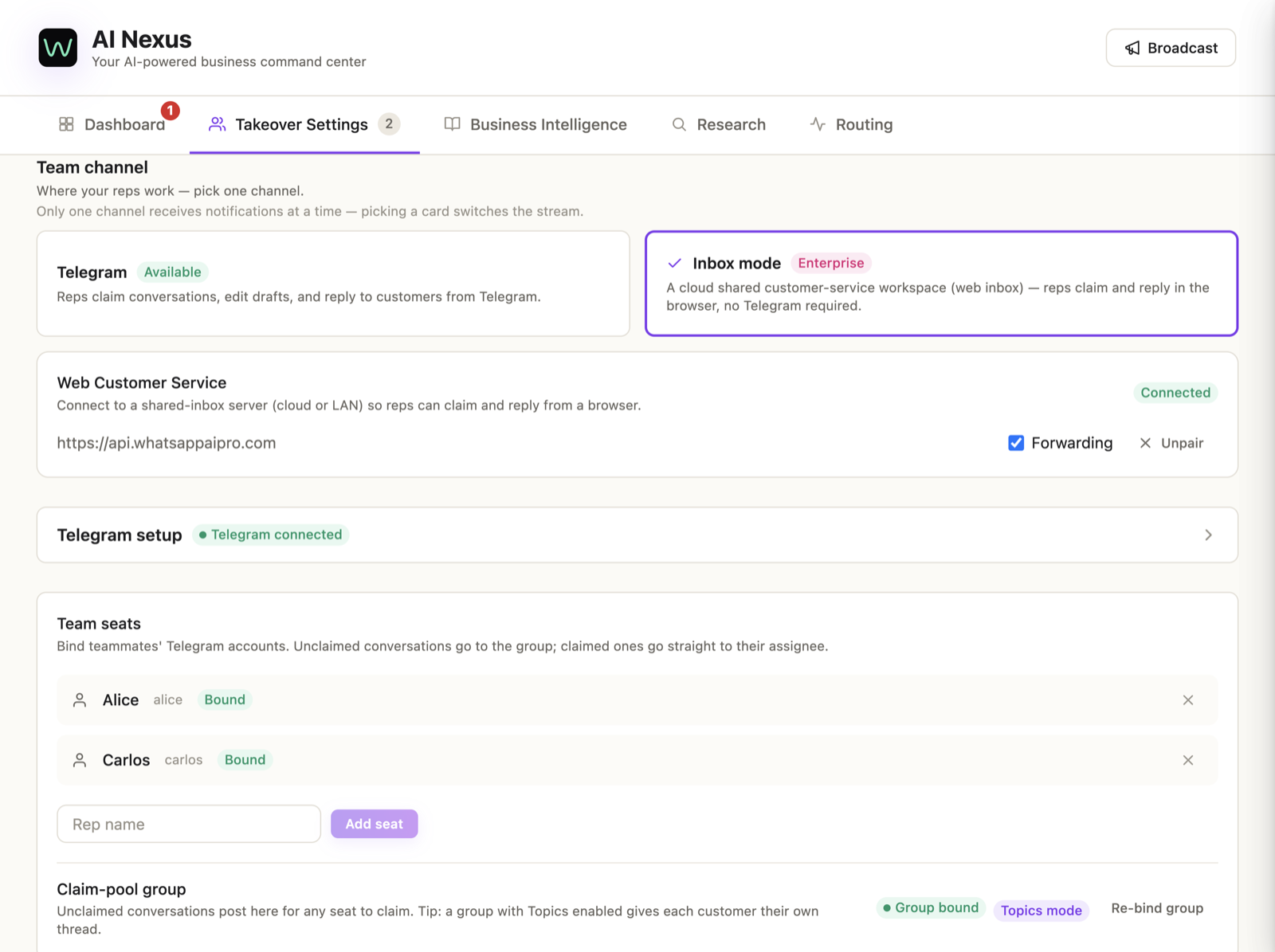
The server address comes pre-filled with the cloud endpoint — leave it. Self-hosting on your LAN? Enter your own address (e.g. http://192.168.1.10:8090).
Step 2 — Generate a pairing code on the web
Open inbox.whatsappaipro.com, sign in with your Company account (your main WhatsApp AI Pro login), and go to Settings → Generate pairing code:
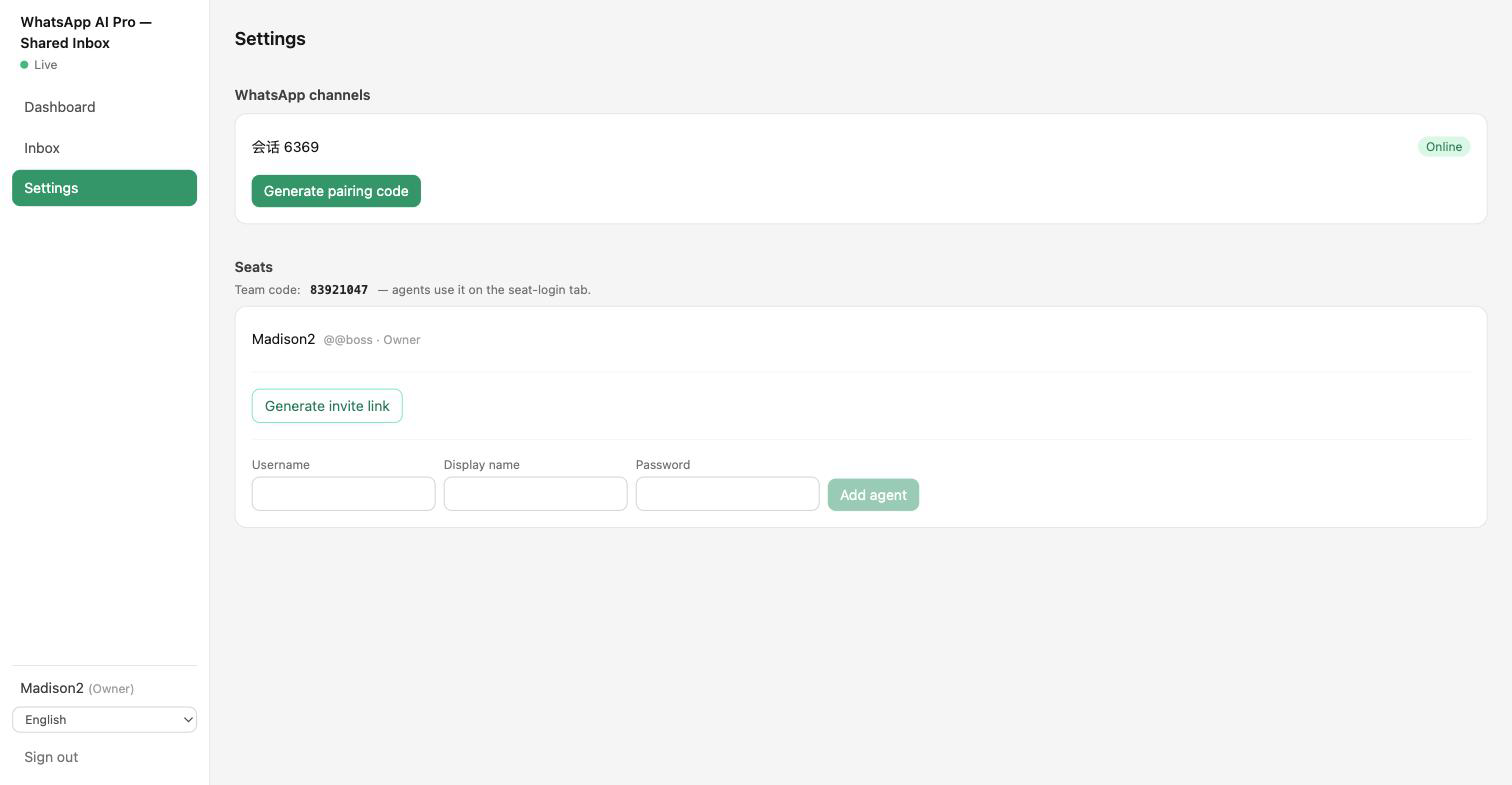
You get a PAIR-XXXX code, valid for 10 minutes.
Step 3 — Pair the desktop
Paste the code into the desktop pairing field and click Pair. The status flips to Paired · Connected, and conversation history backfills to the web automatically.
✓ Done when your channel shows Online under Settings → WhatsApp channels on the web.
Adding reps: two ways
On the web, Settings → Seats:
- Add agent — create a username + password and hand it over.
- Invite link — the teammate opens it, sets their own password, done.
Reps sign in on the Agent seat tab of the login page: username + password + the team code (shown on the Settings page — the boss shares it once).
✓ Done when the rep appears in the seats list and can see the Dashboard.
A rep's day: claim → handle → next
Start at the Dashboard
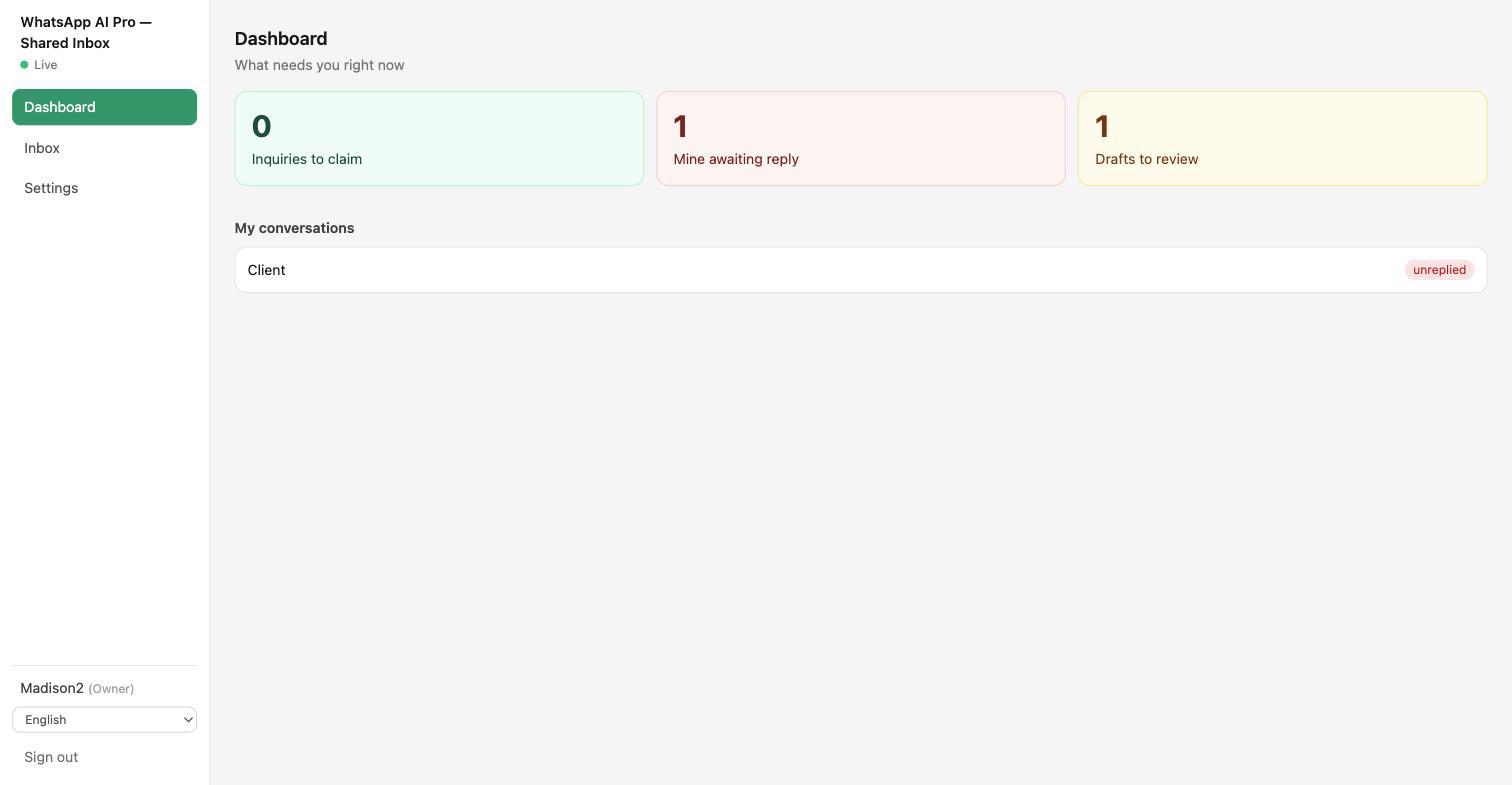
The Dashboard isn't a chart gallery — it's three numbers, each clickable: Inquiries to claim · Mine awaiting reply · Drafts to review.
Claim from the pool
The Inbox has three tabs: Pool / Mine / All (All is owner/admin only). Pool cards show the customer, intent, trigger message, and wait time — first click wins; a slow click gets "Someone else just claimed it." Before claiming, reps only see summaries, never the full thread — the same privacy boundary as the Telegram group.
What a claim means. A claim is an ownership marker for the team and the boss, not a permanent assignment: the conversation moves into your Mine tab and the Dashboard's Mine awaiting reply queue so everyone can see who's on it, and you can hand it back at any time (see Return to pool below).
The conversation view: AI drafts wait for your call
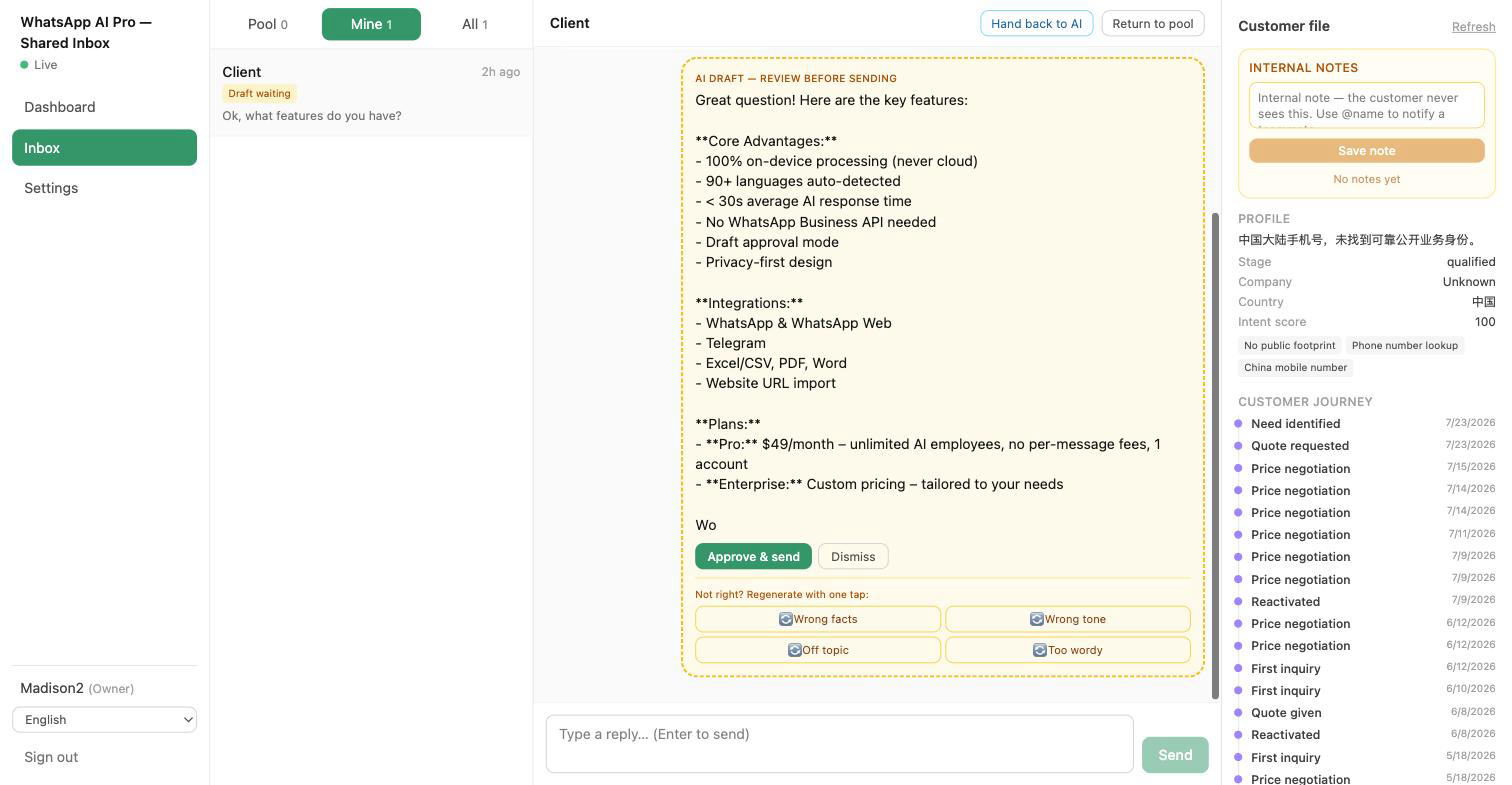
- The AI draft card — labeled "AI draft — review before sending." Approve & send ships it; not right? Dismiss, or regenerate by reason: Wrong facts / Wrong tone / Off topic / Too wordy — the same chips as desktop, Telegram, Slack and WeCom, and your taps teach the AI the same way.
- Free-typed replies — type, hit Enter. Outbound messages still pass the desktop's forbidden-word and security filters — the web has no bypass.
- The customer file on the right — profile, stage, intent score, open commitments, marks and notes, synced live from the CRM.
- Internal notes — team-only notes the customer never sees;
@namenotifies a teammate (the Dashboard has a "Mentions of me" queue). - Collision protection — see " also viewing" when a teammate has the same conversation open; while the AI is drafting, the conversation is marked "AI handling."
Done with it: return or hand back
- Return to pool — can't finish it? Give it back; the draft survives for the next claimer (Return ≠ Reject). Idle claims auto-return after 24 hours.
- Hand back to AI — after a human steps in, the AI politely pauses; click this to let it take over again from the customer's next message.
✓ You've got it when one test message flows end to end — customer → pool → claim → approve draft → delivered — without anyone touching the desktop.
Things that trip people up
"The web says 'WhatsApp channel offline'." The desktop app is closed. The desktop is the WhatsApp channel — it must be running for messages to flow. Reopen it and everything reconnects; queued events deliver automatically.
"Can Telegram (or Slack) and Inbox run together?" No — one team channel at a time. Switching is one click on the channel cards.
"Can reps read every customer conversation?" No. Reps see pool summaries plus their own claimed conversations; the All view belongs to owners and admins.
"Do I need the WhatsApp Business API, or extra WhatsApp accounts for the reps?" No. The desktop app connects the WhatsApp account you already have by QR code — the same mechanism as WhatsApp Web — so there's no business verification and no message templates. Reps need only a browser and an Agent seat; every reply goes out through the company's single number.
"Can the AI send a message on its own in Team mode?" No. In Team mode the AI only drafts — on the web that's the draft card at the bottom of the conversation — and a human sends every outgoing message, whether by Approve & send or by typing a reply.
"We can't put data in the cloud." Inbox also ships self-hosted: a single binary on your own server, so the conversations and contacts the Inbox stores are kept on your server instead of ours. AI features still send content through our servers to an AI provider; drafting a reply, for example, sends recent conversation history, a conversation summary, the contact's name, your notes, CRM details and your company profile. Talk to us for the deployment package.
Related: Solo vs Team mode → · Enterprise overview →